Settings#
Settings are changed with pvql config, which checks each value before storing it:
pvql config                              # list every setting and its value
pvql config set theme document
pvql config get theme
pvql config unset theme                  # back to the default
Every setting takes effect on the next preview, except extensions, which needs the
install command run again. They are kept in
~/Library/Application Support/PyVistaQuickLook/config.json.
Theme#
Previews follow a PyVista theme: its colour for a mesh without scalars, its colormap for one with, its shading and lighting, and its point size and line width. Name one of PyVista’s own:
pvql config set theme document
Or save your own from PyVista and name the file:
import pyvista as pv

theme = pv.themes.DocumentTheme()
theme.color = 'tan'
theme.cmap = 'viridis'
theme.smooth_shading = True
theme.lighting_params.specular = 0.4
theme.save('mytheme.json')
pvql config set theme mytheme.json
Editing the file redraws previews on the next look. Without a theme, previews look like PyVista’s own plots.
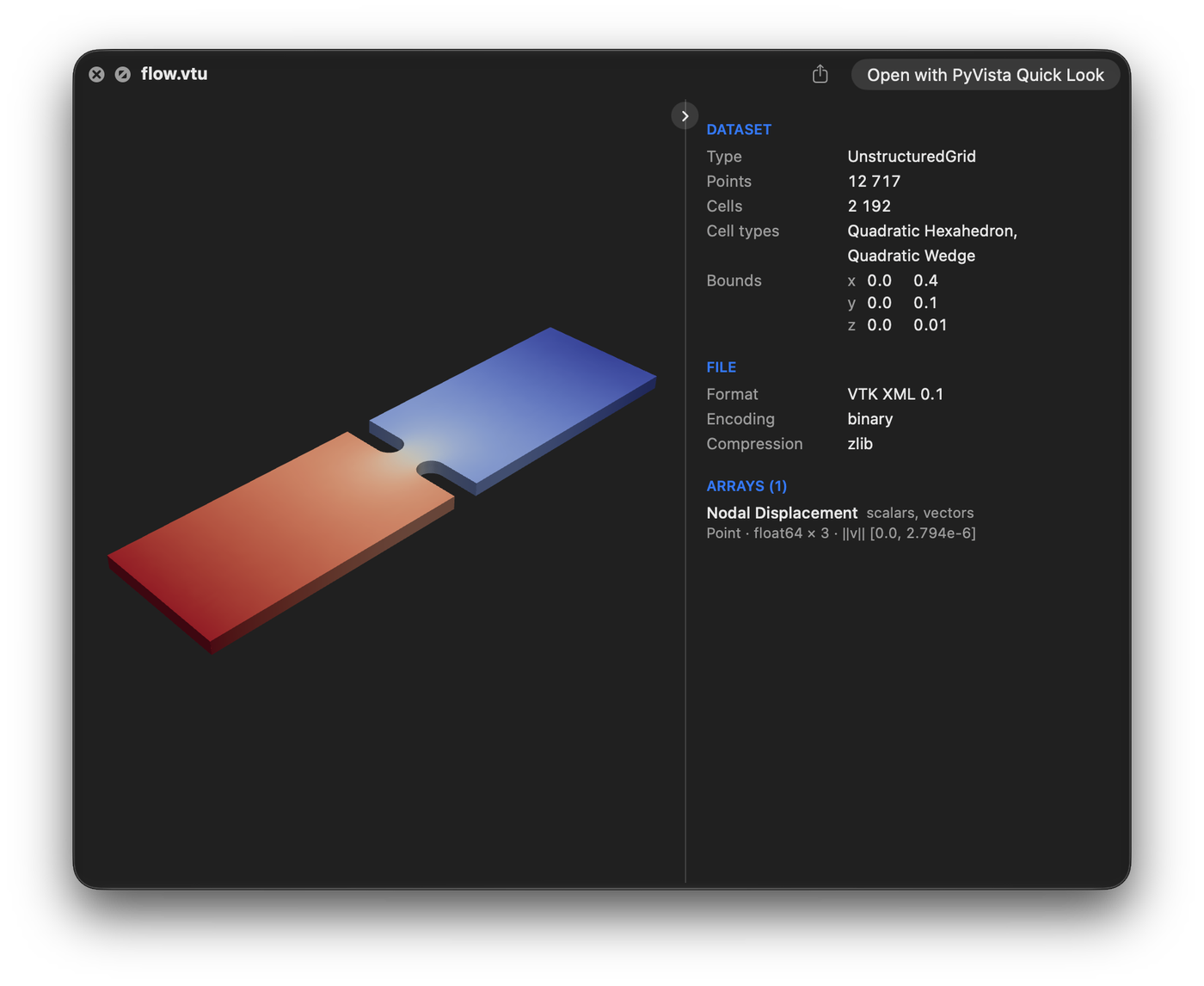
A preview with pvql config set theme paraview.#
Every setting#
Key |
Default |
Effect |
|---|---|---|
|
PyVista’s own |
A PyVista theme by name, such as |
|
|
Show a turnable surface; |
|
|
Open a |
|
|
Where the dataset’s details go: |
|
|
Files above this size show their header and a Preview Anyway button instead of a
preview; |
|
|
Thin surfaces above this many points; |
|
half the memory |
Memory previews may use while built side by side; |
|
|
Seconds before a conversion is abandoned |
|
|
Still image size in pixels |
|
none |
Background colour of still images |
|
none |
Extra arguments appended to |
|
none |
Extensions to claim or stop claiming, on the next install |
|
|
Preview |
|
|
Reuse previously built previews |
|
|
How often the service deletes previews of changed or deleted files; |
|
|
Load PyVista and VTK when the render service starts |
|
|
Append activity to |
|
set at install |
Interpreter of the PyVista environment |
|
discovered |
Absolute path to the |
Claiming more or fewer extensions#
To claim fewer, or to add one of the unclaimed ones listed under Supported files, change the claims and run the install command again, which rebuilds the app with them:
pvql config set extensions.add .h5
pvql config set extensions.remove .dat
Native formats#
macOS previews .ply, .stl, .obj, USD and Alembic files itself, showing the
shape but nothing about the data, and Quick Look ranks its own viewer above any extension
claiming those types. To preview them here instead:
pvql config set native_formats true
The setting stands macOS’s viewer down for your account
(pluginkit -e ignore -i com.apple.HydraQLPreviewExtension), which also takes away its
preview of MaterialX files; the extension already claims the types, and Quick Look
honours the claim once the viewer is down. USD and Alembic files are read through macOS’s
own Model I/O by a tool the app carries, one block per mesh named by its path in the
file; USDZ packages stay with AR Quick Look. pvql doctor reports the state. Setting it
back to false restores the viewer at once.
Without the setting, the app is still offered for them under Open With: select a .ply
in the Finder, press ⌘I, choose PyVista Quick Look under Open With, and click Change All.
Double-clicking such a file then opens this preview, render and dataset panel alike, in a
window of its own.